
Ugh, the internet. We love it, we need it, and yet, it can be the biggest source of frustration in our digital lives. How many times have you yelled at your router, slammed your laptop shut in a rage, or just stared blankly at your phone, willing the buffering wheel to disappear? If you’re anything like me, the answer is probably too many to count.
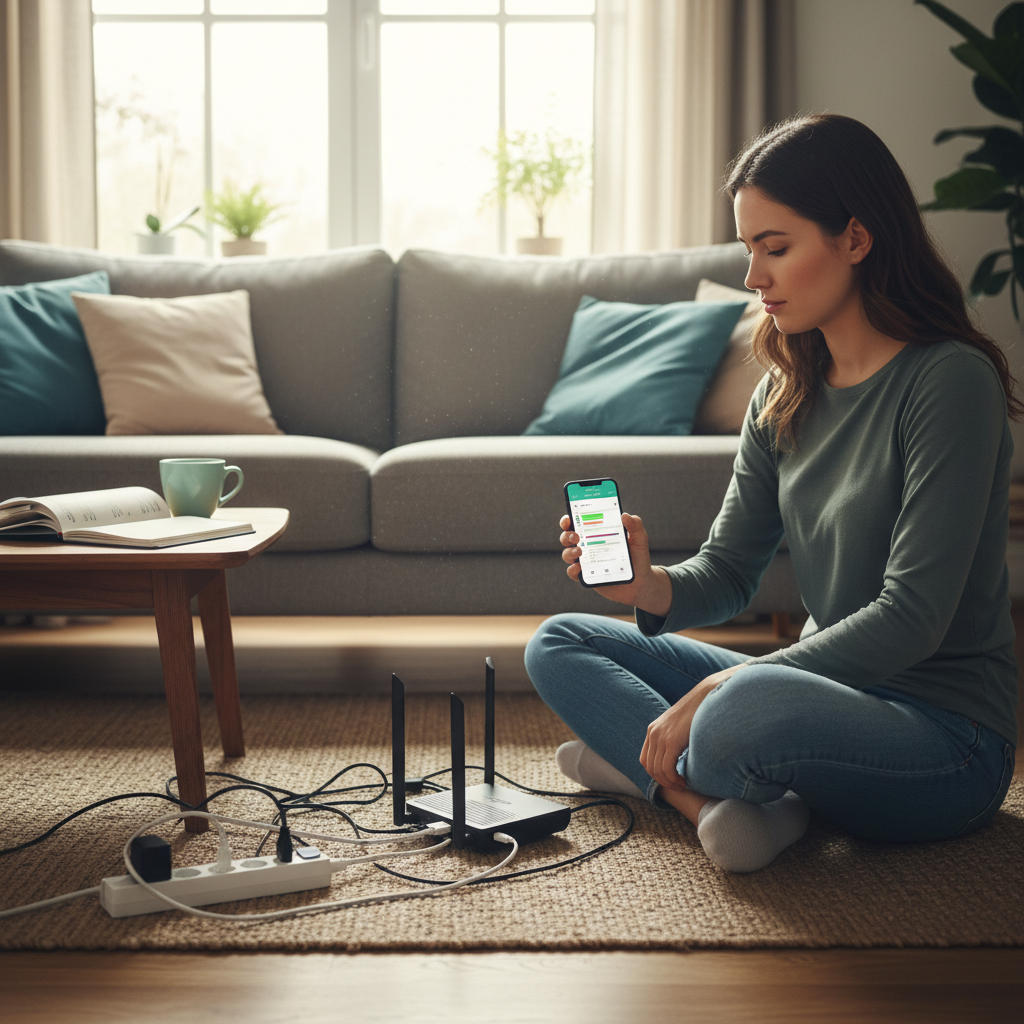
Today, let’s talk about Wi-Fi. It’s the invisible force that connects us to the world, and also the invisible force that seems to fail at the worst possible moments. We’ll decode some common Wi-Fi frustrations, understand how it works (without getting technical), bust some myths, and learn how to keep your home network running smoothly. Think of me as your tech-savvy friend who’s seen it all.
The Daily Wi-Fi Gripes: Sound Familiar?
Let’s start with the things that drive us crazy:
- The “Dead Zone” Mystery: You’re happily scrolling through Instagram in the living room, then move to the bedroom, and… nothing. Zero bars. How does Wi-Fi decide to quit on you the second you need it?
- The “Slowpoke” Syndrome: You’re trying to stream a movie, but it keeps buffering. Or, you’re trying to download a file, and it feels like it’s going back to the dial-up days.
- The “Multiple Device Meltdown”: Everyone in your house is online – streaming, gaming, video calling – and suddenly, the internet crawls to a halt. It’s like a digital traffic jam.
- The “It Just Stopped Working” Enigma: Everything was fine, and then… it wasn’t. No warning, no explanation. Just a blank screen and a feeling of impending doom.
Sound familiar? You’re not alone. These are some of the most common Wi-Fi woes, and the good news is, many of them are fixable.
How Wi-Fi Actually Works (Without the Tech Jargon)
Okay, let’s get a basic understanding of what’s happening behind the scenes. Think of your Wi-Fi router as a radio station. It broadcasts a signal (the Wi-Fi) over the airwaves. Your devices (phones, laptops, smart TVs) have little antennas that “listen” to this signal and pick up the internet.
Here are the key things to understand:
- The Router is the Key: Your router is the heart of your home network. It connects to your internet service provider (ISP) and sends the signal to your devices.
- Frequency Bands: Most routers use two main frequency bands: 2.4 GHz and 5 GHz. Think of these as different radio channels. 2.4 GHz has a longer range (good for covering more distance) but can be slower and more prone to interference. 5 GHz is faster but has a shorter range.
- Bandwidth: This is the “pipe” that carries your internet data. The wider the pipe (higher bandwidth), the more data can flow through it, resulting in faster speeds.
- Obstacles Matter: Walls, furniture, and even other electronic devices can interfere with your Wi-Fi signal, weakening it or causing dead zones.
Common Wi-Fi Mistakes People Make (and How to Fix Them)
Let’s look at some everyday Wi-Fi blunders and how to avoid them.
- Mistake: Router Placement is an Afterthought. People often stick their router in a corner, inside a cabinet, or behind a bunch of other electronics. This is a Wi-Fi death sentence.
- Fix: Place your router in a central, open location in your home. Elevate it (a shelf is ideal) and keep it away from walls, metal objects, and other electronics. Think of it like a lighthouse; you want to give it the best possible view.
- Mistake: Ignoring Your Router’s Age. Routers, like all tech, have a lifespan. An old router might be struggling to handle today’s demands.
- Fix: Consider upgrading your router every few years, especially if you have a lot of devices or you’ve upgraded your internet speed. New routers have better technology to handle modern demands. Check out for the latest tech reviews.
- Mistake: Forgetting to Reboot. This is the tech equivalent of “Have you tried turning it off and on again?” It works surprisingly often.
- Fix: Reboot your router and modem at least once a month. Unplug them both, wait 30 seconds, plug the modem back in, wait for it to fully boot up, and then plug in the router. It clears out temporary glitches.
- Mistake: Password Protection Neglect. A weak or non-existent password opens your network to freeloaders (who steal your bandwidth) and potential security risks.
- Fix: Set a strong password on your Wi-Fi network. Use a combination of uppercase and lowercase letters, numbers, and symbols. Change it regularly.
- Mistake: Cluttering Your Network. Too many devices online simultaneously can overload your network, especially if you have a slower internet plan.
- Fix: Prioritize your devices. If multiple people are streaming, consider upgrading your internet plan. Also, temporarily disconnect devices you’re not actively using.
Wi-Fi Myths vs. Reality
Let’s debunk some common Wi-Fi misconceptions:
- Myth: A More Expensive Router Always Means Better Wi-Fi.
- Reality: Price is not the only factor. You need a router that’s appropriate for the size of your home, the number of devices you have, and your internet speed. Read reviews and look for features like MU-MIMO (for handling multiple devices simultaneously) and beamforming (to direct the signal to your devices).
- Myth: Wi-Fi Extenders Are Always the Best Solution for Dead Zones.
- Reality: Extenders can help, but they also reduce your overall speed. They essentially create a “middleman” that relays the signal. A better solution might be a mesh Wi-Fi system (more on that later).
- Myth: The More Bars, the Better the Speed.
- Reality: Signal strength (the bars you see on your device) isn’t the only factor. Even with full bars, your speed can be slow if your internet plan is slow, or if your router is struggling.
- Myth: Switching Wi-Fi Channels Will Magically Fix Everything.
- Reality: Sometimes, it helps to switch Wi-Fi channels to avoid interference from other networks in your area. However, it’s not always a guaranteed fix. Most routers have an “auto” setting that chooses the best channel for you.
Safe and Practical Usage Tips for Better Wi-Fi
Here are some everyday habits that can improve your Wi-Fi experience:
- Regularly Check Your Speed: Use a speed test website (like Speedtest.net) to measure your internet speed. This can help you identify if your ISP is delivering the speeds you’re paying for.
- Update Your Router’s Firmware: Router manufacturers regularly release firmware updates to improve performance and security. Check your router’s settings for updates.
- Manage Your Devices: Know what’s connected to your network. Most routers have a dashboard that shows all the devices using your Wi-Fi. This can help you identify any unknown devices that might be freeloading.
- Use Ethernet for Key Devices: If possible, connect devices like your smart TV or gaming console directly to your router with an Ethernet cable. This will provide the fastest, most reliable connection.
- Consider a Mesh Wi-Fi System: If you have a large home or a home with thick walls, a mesh Wi-Fi system (multiple “nodes” that create a seamless Wi-Fi network) can provide better coverage than a single router and extenders.
Long-Term Habits for a Happy Home Network
Let’s build some habits for sustained Wi-Fi bliss:
- Be Proactive, Not Reactive: Don’t wait until your Wi-Fi is a disaster. Regularly check your router’s performance, update your firmware, and consider your internet usage habits.
- Educate Yourself: Stay informed about the latest Wi-Fi technologies and trends. This will help you make informed decisions about your network.
- Troubleshoot Smartly: When you have issues, don’t just panic. Try the basic troubleshooting steps first (rebooting, checking connections). Then, if needed, consult your ISP’s support resources or search online for solutions.
- Prioritize Your Needs: Evaluate your internet usage. Do you need a faster plan? Do you need a new router? Tailor your network to your specific needs.
- Learn How to Read Your Router’s Manual: Most people don’t read the router manual. However, it can give you some amazing tips on how to improve your router’s performance.
FAQ: Your Wi-Fi Questions Answered
Let’s address some common Wi-Fi questions:
- Why is my Wi-Fi so slow at night?
This is often due to network congestion. More people in your area are online at night, which can slow down your internet speed. Also, heavy users in your household may be using most of your bandwidth for things like streaming or gaming.
- Should I use the 2.4 GHz or 5 GHz band?
5 GHz is generally faster, but 2.4 GHz has a longer range. Try 5 GHz first for devices that are close to the router, and switch to 2.4 GHz if you experience coverage issues. Some routers automatically switch between the two.
- How often should I change my Wi-Fi password?
At least every few months, but more frequently if you suspect your network has been compromised. Also, consider setting a different password than the default from your router’s manufacturer.
- What’s the difference between a modem and a router?
The modem connects to your ISP (the internet cable). The router creates your home network and shares the internet connection with your devices. They are sometimes combined into a single device.
- Is it safe to leave my router on all the time?
Yes, it’s generally safe. However, rebooting your router occasionally can improve its performance. Also, if you’re concerned about energy consumption, you can consider turning it off when you’re away for extended periods (like when on vacation). But you will need to turn it off completely; it doesn’t really save much energy by shutting it down at night, as it has a very low power draw.
- My Wi-Fi keeps dropping out. What can I do?
First, try rebooting your router and modem. If that doesn’t work, check your router’s placement, make sure your firmware is up to date, and consider upgrading your router. Also, call your ISP and check if there’s any problem on their end. Also check your outlets, as they may be the source of your issues. Check out The Silent Threat: How Ignoring Your Outlets Can Cost You, as they may be connected.
- Should I upgrade my internet plan?
If you’re constantly experiencing slow speeds or buffering, and you’ve already optimized your network, it might be time to upgrade your plan. Consider how many devices you have and what you use the internet for (streaming, gaming, video calls).
- How do I know if someone is using my Wi-Fi without my permission?
Check your router’s settings dashboard. It will show you all the devices currently connected to your network. If you see devices you don’t recognize, change your Wi-Fi password immediately.
By understanding how Wi-Fi works, addressing common mistakes, and implementing these tips, you can transform your home network from a source of frustration to a reliable digital hub. Now go forth and conquer those Wi-Fi woes!